

OneTrust is the most widely deployed consent management platform in the world. If you’ve worked in privacy for more than a few years, you’ve deployed it. You’ve configured it. Your legal team has approved it. Your compliance checklist says you’re done.
But here’s the uncomfortable truth: installed does not equal working.
Having OneTrust running on your website is not the same as having it actually protect user consent. We’ve audited hundreds of OneTrust deployments, and the gap between “we have OneTrust” and “our OneTrust is working correctly” is remarkably wide. Many organizations discover compliance failures only when an auditor or regulator tests their implementation.
This guide walks you through the most common OneTrust configuration failures and shows you how to validate that your implementation actually works.
The Most Common OneTrust Configuration Failures
The same problems appear across deployments again and again. Understanding them is half the battle.
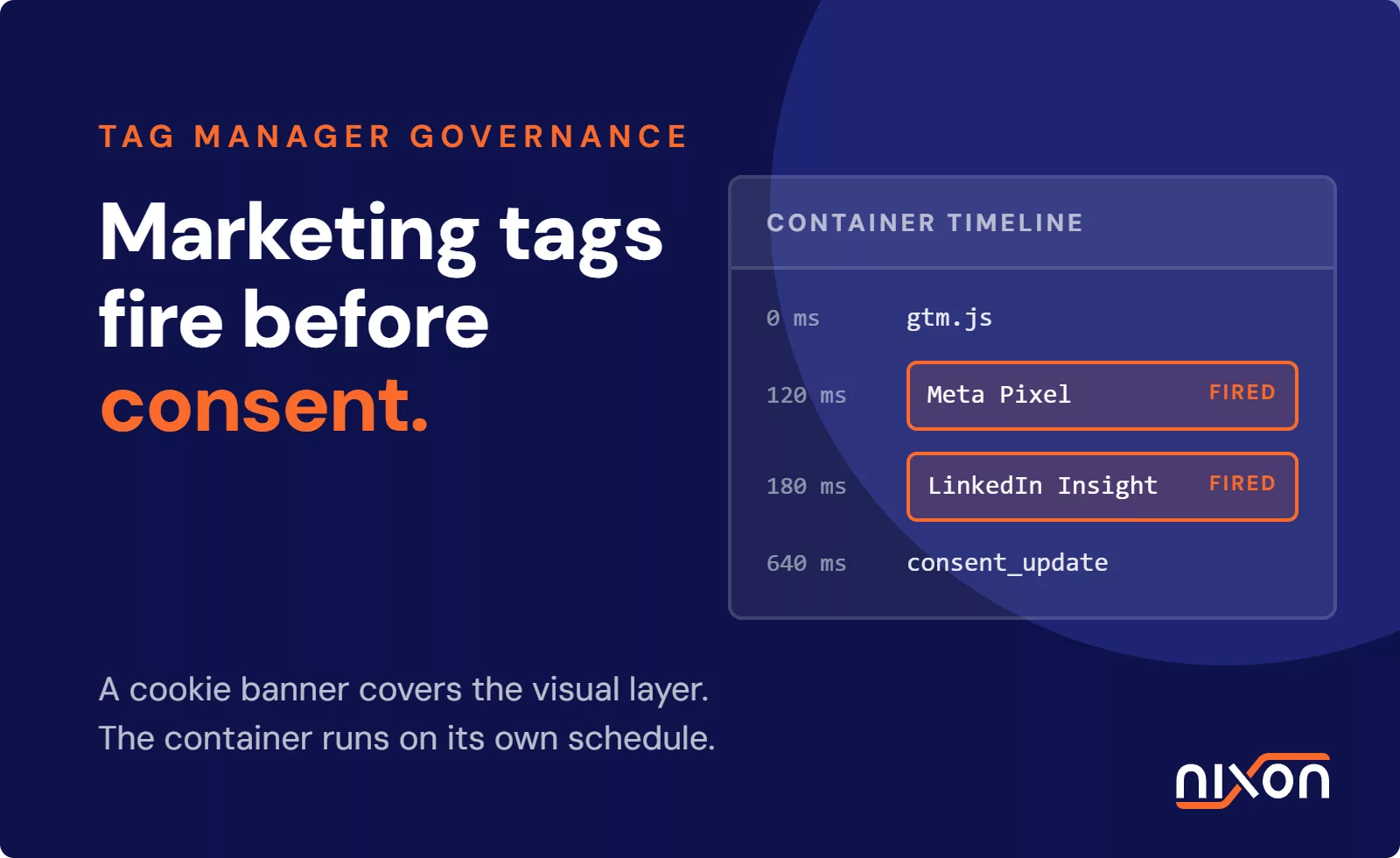
Scripts fire before the OneTrust banner appears. This is a race condition. When a page loads, third-party tracking scripts sometimes initialize before the OneTrust banner has rendered and before users have a chance to consent. The Network tab will show Google Analytics, Meta Pixel, or other tracking tools firing within milliseconds of page load, before the consent banner is visible. This violates GDPR and CCPA immediately.
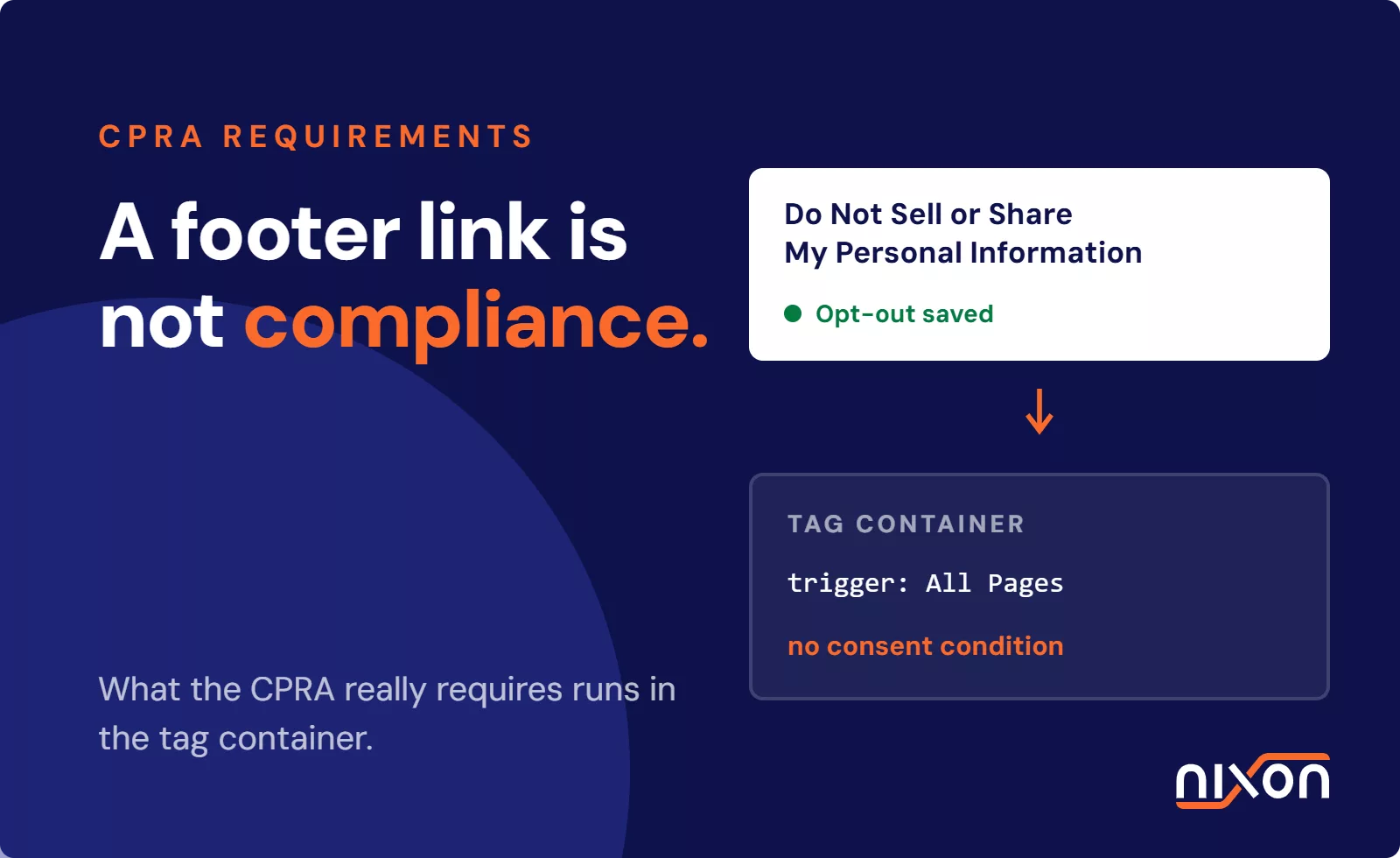
Categories are mapped to the wrong scripts. OneTrust lets you assign scripts to consent categories like “Analytics,” “Marketing,” or “Strictly Necessary.” Many deployments misclassify them. Analytics scripts end up in the “Strictly Necessary” category. Marketing pixels get bundled with functional cookies. The result: users reject marketing consent, but the scripts keep firing anyway because the categorization is wrong.
Google Tag Manager fires tags before consent confirmation. GTM is powerful but dangerous. If GTM is configured to fire tags on page load before OneTrust has initialized, you’re tracking without consent. Many deployments load GTM first, then OneTrust, then try to control GTM tags with consent signals. By then, the damage is already done.
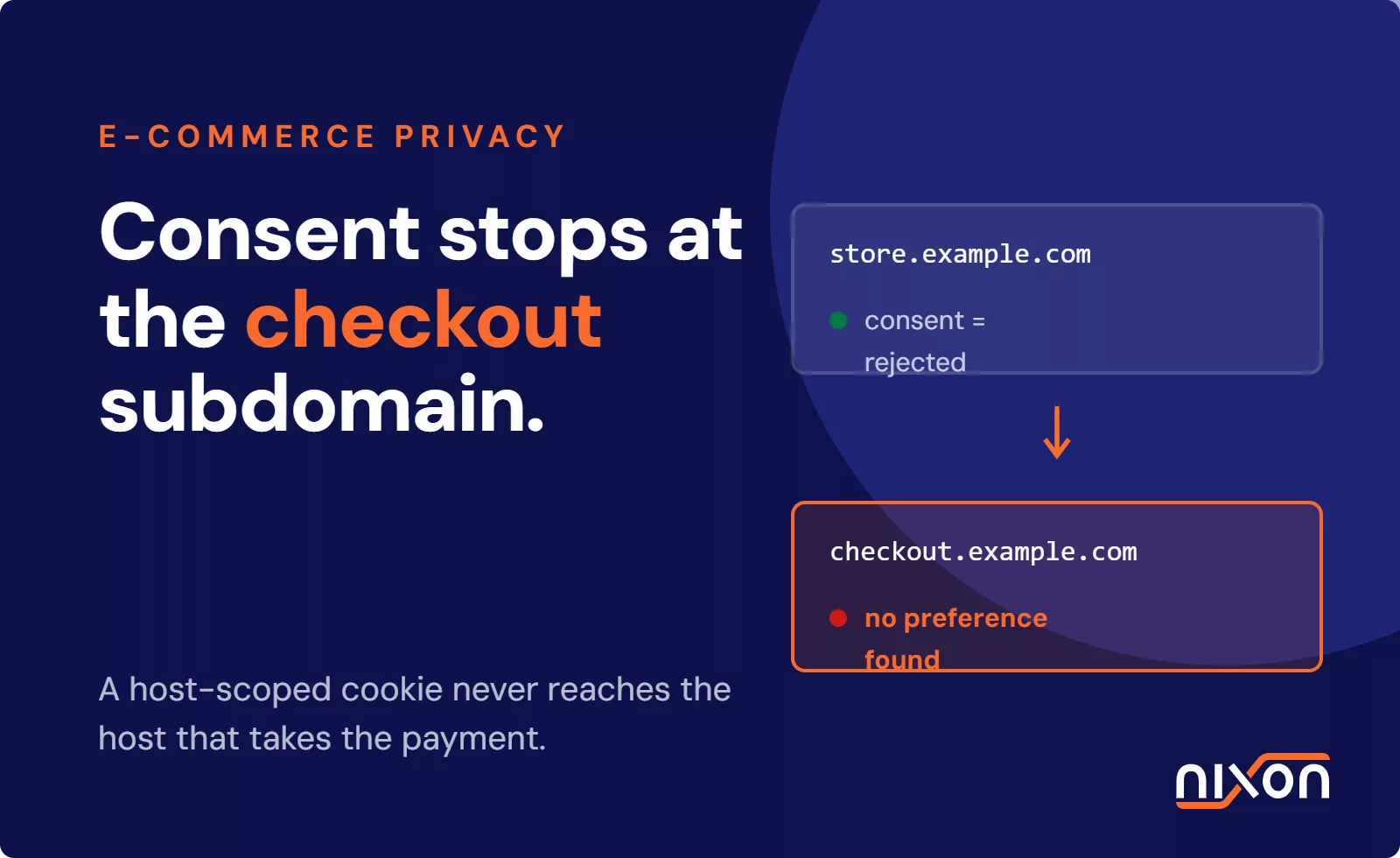
Consent preferences aren’t remembered on return visits. A user rejects all non-essential scripts on Day 1. On Day 3, they return to your website, and OneTrust asks them again. The browser rejected the consent cookie, or your cookie policy is misconfigured, or the cookie domain is wrong. Return visitors see the banner repeatedly instead of having their previous choices honored.
Mobile rendering breaks the user experience. On desktop, your OneTrust banner looks clean and balanced. Accept All and Reject All buttons sit side-by-side. On mobile, the banner collapses. The Reject All button disappears below the fold or becomes a tiny link. Reject All requires a two-step interaction while Accept All is a single tap. This is a dark pattern under GDPR and EDPB guidelines, even if unintentional.
Reject All is harder to access than Accept All. EDPB guidance is explicit: rejection must be as easy as acceptance. If your banner shows a large “Accept All” button and buries “Reject All” in a menu or scrollable area, you’re in violation.
IAB TCF 2.2 signals aren’t transmitted correctly. If you use IAB Transparency and Consent Framework, your OneTrust implementation must signal user consent to downstream partners. Misconfigured TCF signals mean vendors don’t know whether they have consent, leading to either blocked functionality or unapproved tracking.
Each of these problems exists in live implementations right now. And they’re all testable.
How to Test Your OneTrust Implementation Manually
Testing OneTrust doesn’t require specialized tools. The browser’s developer tools and a methodical approach will catch most failures.
Test for pre-consent script firing. Open an incognito window in your browser, navigate to your website and open the Network tab. Watch the first few seconds closely. Before the OneTrust banner fully renders and appears, scan for requests to Google Analytics, Meta Pixel, Hotjar, or other tracking services. If you see these scripts firing before the banner is visible, you have a race condition. Repeat this test on different pages. The problem might appear on some pages and not others, especially if templates differ.
Verify that rejected scripts actually stop. After the banner appears, click “Reject All.” Keep the Network tab open and reload the page. Now, third-party analytics, marketing, and non-essential tracking scripts should not fire. If they still do, your OneTrust categories are misconfigured or your script blocking isn’t working. Check which scripts are still loading. Each one needs to be audited.
Test consent persistence. Set your consent preferences to “Reject All” on your website. Close the browser completely. Reopen the website in a new browser window. You should not see the OneTrust banner again. If the banner reappears asking for consent, your consent cookie isn’t being set or retrieved correctly. This is a critical failure. It means return visitors get asked repeatedly, and consent is never actually stored.
Check cookie configuration. Dig into your OneTrust settings. Verify that the consent cookie is set with the correct domain. If your website is example.com but the cookie is set to www.example.com, subdomains won’t see the cookie. The cookie should have an appropriate expiration (often 12 months). Check that the cookie name is standard. If it’s misconfigured, browsers or privacy tools might delete it, resetting user preferences.
Inspect the consent payload. Once you’ve given consent or rejected, look at the Network tab for requests to OneTrust’s API or to your data layer. You should see a clear consent payload being sent. Verify that your choice (Reject All or specific categories) is accurately represented in that payload. If the payload always says “all consent granted” regardless of your clicks, the consent signal is being ignored.
What to Check on Mobile
Mobile testing is where many implementations fail. Desktop looks polished. Mobile often doesn’t.
Load your website on a real mobile device (not a desktop browser in mobile emulation mode). Look at your OneTrust banner. Can you see both “Accept All” and “Reject All” without scrolling? On iOS, the banner might be partially obscured by the browser’s address bar. On Android, the status bar can take up space. Check if the buttons are equally sized and equally prominent. If one button is significantly larger or more colorful, that’s a design choice that influences user behavior.
Try tapping “Reject All.” How many taps does it take? If it requires scrolling first, or navigating through a preferences menu, it’s harder than “Accept All.” Ideally, both buttons should be one tap away from the top of the banner.
Test banner appearance across different mobile browsers: Safari on iOS, Chrome on Android, Firefox on both. OneTrust renders differently depending on the browser and OS version. A problem on one browser might not appear on another, but if you’re targeting global users, you need to support all major browsers.
When Manual Validation Isn’t Enough
Manual testing works. But it doesn’t scale.
If your website has fifty pages, you can test them all manually. Incognito window, Network tab, Reject All, reload, check Network tab again. Repeat fifty times. It’s tedious, but possible. If you have hundreds of pages, or if your site structure changes frequently, or if you deploy new tracking scripts regularly, manual testing becomes a compliance liability. You miss pages. You skip testing. Months pass between audits.
This is where automated validation helps. Nixon Pro tests your entire website’s OneTrust implementation in a single run. It loads each page in an automated browser, watches for pre-consent script firing, confirms that rejected scripts don’t fire after Reject All is clicked, verifies consent persistence, and checks mobile rendering. It catches the race conditions, miscategorized scripts, broken cookies, and dark patterns that manual testing misses.
The tool generates a detailed report of every failure on every page, with specific recommendations for each issue. Instead of spending two days manually validating a site, you get results in hours. More importantly, you can run validation regularly, not once a year. You catch compliance gaps before auditors do.
For ongoing consent monitoring, the Nixon Platform provides continuous oversight. Set it once, and it alerts you when consent signals break or tracking scripts misbehave.
Start with a Manual Audit
You don’t need a tool to validate your OneTrust implementation right now. Open an incognito window. Load your most critical page. Watch the Network tab. Click Reject All. See what fires. Check your mobile experience. If you find failures, note them. Most of the problems outlined above are fixable in OneTrust’s configuration without redesigning your consent flow.
But if you find yourself testing dozens of pages, or if your website changes frequently, or if you’re validating OneTrust across multiple domains, manual testing hits its limits. That’s when automation becomes not just convenient but necessary for maintaining compliance as your website evolves.
The gap between “we have OneTrust” and “OneTrust works” closes only when you test it. Do that regularly, and you’ll catch the failures that others miss.
Frequently Asked Questions
Does having OneTrust installed mean our consent implementation is compliant?
No. Installed does not equal working. Having OneTrust running on your website is not the same as having it correctly protect user consent. Common failures include scripts firing before the banner appears, wrong category mappings that allow rejected scripts to keep running, GTM firing before OneTrust has initialized, and consent preferences not being remembered on return visits. All of these can exist in a live OneTrust deployment without anyone noticing until a regulator tests it.
How do I test whether OneTrust is actually blocking scripts after a user rejects consent?
Open an incognito window, navigate to your website and open the Network tab in DevTools. First, watch what fires before the OneTrust banner is visible – any tracking requests at this stage are a race condition violation. Then click “Reject All” and reload the page. Third-party analytics, marketing and non-essential tracking scripts should not fire. If they do, your OneTrust category mappings are wrong or script blocking is not working. Repeat this test across different page types, as the problem often appears on some pages but not others.
Why do return visitors sometimes see the OneTrust banner again after already making a choice?
This usually means the consent cookie is not being set or retrieved correctly. Common causes include the cookie being scoped to the wrong domain – for example, set on www.example.com when the site also runs on example.com – an incorrect expiration period, or a misconfigured cookie name that browsers or privacy tools delete automatically. The result is that user preferences are never actually stored, so the banner reappears on every visit.
What OneTrust-specific problems should I test on mobile that might not appear on desktop?
Check whether both “Accept All” and “Reject All” are visible without scrolling on a real mobile device. On mobile, banners often collapse in ways that push the Reject All button below the fold or reduce it to a small link while Accept All remains a prominent button. If rejecting requires more taps than accepting, that is a dark pattern under EDPB guidelines even if unintentional. Test across Safari on iOS, Chrome on Android and Firefox on both – OneTrust renders differently across browsers and OS versions.
When does manual OneTrust validation become insufficient?
When your website has more than a handful of pages, changes frequently, or deploys new tracking scripts regularly. Manual testing in incognito windows is effective but does not scale – you miss pages, skip testing cycles and months pass between audits. The critical failures are often on secondary pages like product pages or checkout flows, not the homepage. Automated tools can test your entire site in a single run, catch race conditions and miscategorized scripts across all pages, and run regularly enough to catch compliance gaps before auditors do.