
Browser DevTools can show you what’s firing on one page. But scaling tracker detection across hundreds of pages, catching server-side tracking and testing consent blocking requires a more systematic approach. This guide walks you through the technical methods that privacy engineers actually use.
Browser-Side Third-Party Tracker Detection: Starting with the Basics
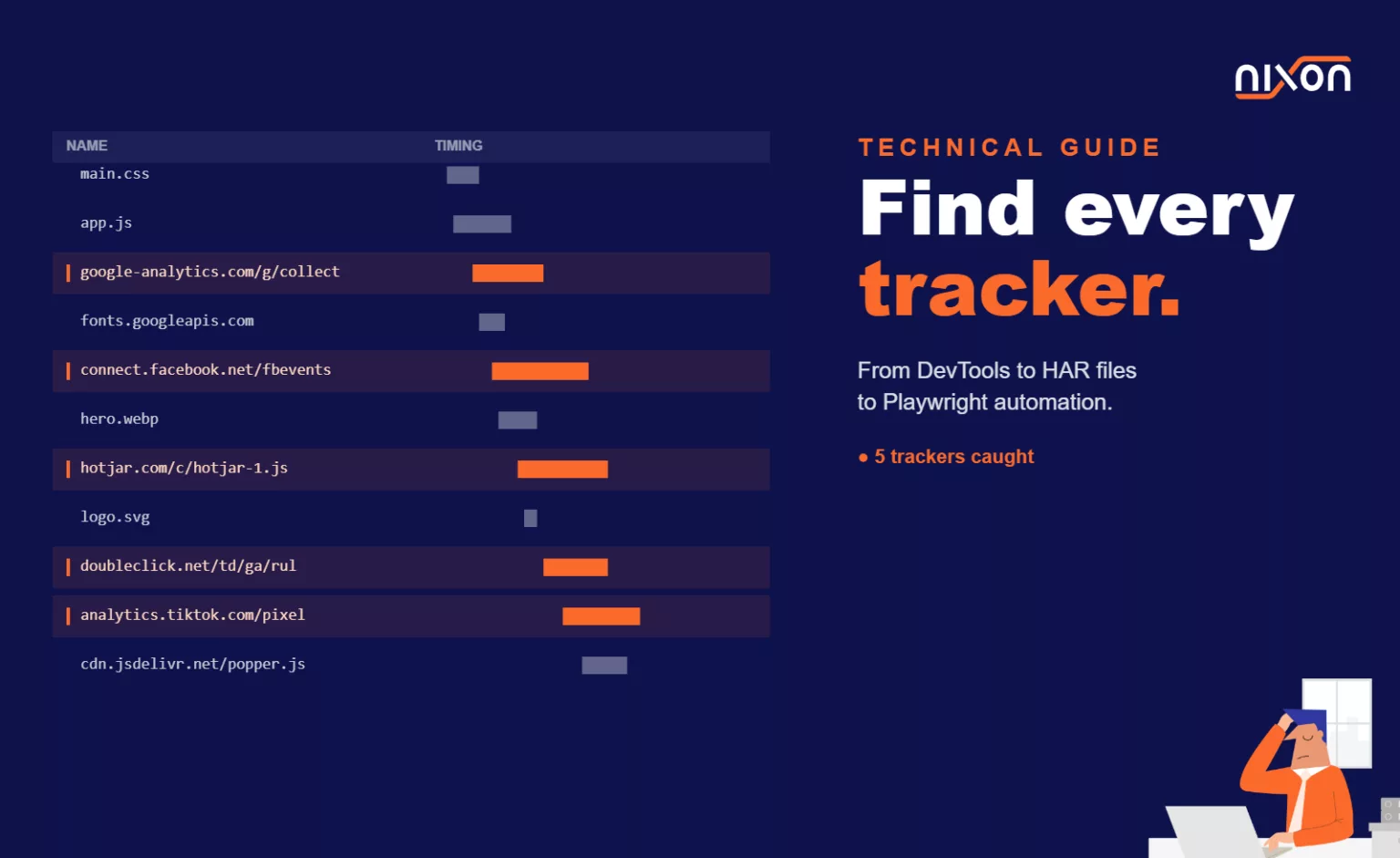
When you open Chrome DevTools Network tab, you’re looking at the raw HTTP conversation between your browser and servers. To spot trackers, filter requests to third-party domains only. Click the filter icon and enter - followed by your own domain name to exclude first-party requests. What remains are requests to external domains: ad networks, analytics platforms and tracking pixels.
The request details matter. Examine the Request Headers and look for user identifiers being sent. Trackers often transmit your cookies, IP address, or device fingerprinting data. Look specifically at query parameters. A request to tracking-domain.com?uid=abc123&url=... is broadcasting your activity to that third party. The Response tab shows whether the third party sends back tracking cookies or pixels (visible as tiny 1×1 images).
For deeper inspection, use Chrome’s Request Blocking tab. Right-click any request and select “Block URL” or “Block domain”. Reload the page. If the site still functions normally, that tracker isn’t critical to core functionality. This manual approach works fine for spot checks, but doesn’t scale.
Extracting and Analyzing HAR Files
HAR (HTTP Archive) files capture the complete network waterfall of a page load. Export one by opening Chrome DevTools Network tab, right-clicking the request list, and selecting “Save all as HAR with content”. The resulting JSON file contains every request, response header and timing data for that session.
Parse this HAR programmatically to identify trackers. Extract the entries array and iterate through each request’s request.url. Cross-reference each domain against the EasyPrivacy blocklist, which maintains a curated list of tracking domains. If a domain appears in the blocklist, it’s a confirmed tracker. Log the domain, the URL path and any cookies or user identifiers included in that request.
This approach works well for one-off audits. The limitation: it captures a single page load, a single session. You’re not testing different user segments, different pages, or the effect of consent choices. You need automation.
Automated Browser Testing with Puppeteer or Playwright
Scaling tracker detection means running detection scripts across your entire website on a schedule. Tools like Puppeteer and Playwright let you programmatically control a headless browser, intercept network requests and log them to a database.
The basic pattern: launch a browser, navigate to a target URL, intercept all requests before they complete, check each request URL against the EasyPrivacy list, and report matches. In Playwright, use page.on('request', ...) to hook into every network request. Accumulate a list of requests during page load and filter that list by domain against your tracker database after navigation completes.
Crucially, run this test in three states: baseline (no consent preference set), accept all analytics, and reject all analytics. Compare the network requests across all three states. In “reject all” mode, you should see zero additional requests to tracker domains beyond those in the baseline state. If new tracking requests appear after clicking “reject”, your consent mechanism isn’t working.
This setup integrates into your CI/CD pipeline. Run the detection script on every deploy, every new landing page and every quarterly audit of existing pages. Store the results in a database so your privacy team can trend tracker additions over time and catch regressions.
Server-Side Tracking: The Hidden Problem
Browser tools have a fundamental blind spot: they only see requests that originate from the browser. Server-side tracking happens when your web server receives a page request, then your server makes a request to a tracking service. This server-to-server communication never appears in the browser Network tab.
Detecting server-side tracking requires different tools. Monitor outbound DNS queries from your server. If your server is making DNS lookups for tracking domains, that’s a signal of server-side tracking. Examine firewall rules and network monitoring tools that log outbound connections. If your web server is connecting to analytics-platform.example.com:443, investigate whether that connection is transmitting user data.
Customer Data Platforms (CDPs) amplify this risk. Many CDPs proxy event data through the vendor’s servers before writing to your data warehouse. You send user events to api.cdp.example.com, the CDP processes them, and forwards enriched data to your destination. Your consent preference should prevent these calls entirely when the user opts out, but many CDPs don’t implement this properly.
Request your CDP vendor for documentation on how they respect consent signals. Require them to provide a network diagram showing the complete data flow. Specifically ask: “If a user opts out of tracking, does your system prevent any outbound requests to your servers, or do you still collect events and suppress them only in reporting?”
Testing Consent Effectiveness
Your consent mechanism’s actual behavior differs from its intended behavior. To test effectiveness, run the three-state comparison mentioned above, but with better precision.
Establish a baseline by navigating to your page without setting any consent preferences. Let the page fully load and measure the complete network activity. Then reload in a fresh browser session with all consent preferences rejected. Measure the network activity again. The delta should be: zero new requests to marketing trackers, zero new analytics requests, zero new third-party vendors being contacted.
Likewise, accept all and measure again. You should see new requests light up: Google Analytics, Facebook Pixel, Segment, whatever your marketing stack includes. These requests should not appear in the “reject all” scenario.
Automate this with Playwright. Create a test script that:
- Launches a headless browser
- Navigates to your page (baseline state)
- Records all network requests
- Closes the browser
- Launches a new browser session (fresh cookies)
- Navigates to your page and clicks “Reject All”
- Records all network requests
- Compares the two request lists
Report any new tracking requests that appear in the “accept all” state that shouldn’t appear in “reject all”. This is how you catch consent implementations that leak data after opt-out.
Scaling with Nixon Pro
Running these scripts manually across dozens of pages gets tedious fast. Nixon Pro automates this process across your entire website. Rather than writing custom Playwright scripts and managing infrastructure, the platform handles website crawling, tracker detection against known tracker lists, consent testing and automated alerts when new trackers are detected.
Your privacy team can set up a scan schedule, review results in a centralized dashboard, and receive alerts when consent blocking fails or new trackers appear. This is the standard approach for teams managing privacy at scale: you need consistency across pages, historical trend data and a system that tests new pages automatically as they’re deployed.
Next Steps
Start with manual DevTools inspection on a few key pages. Export HAR files and parse them to understand your tracker footprint. Then progress to Playwright automation for your most critical pages. As your program matures, invest in continuous testing infrastructure so your privacy team gets alerted to regressions before they reach users.
Tracker detection is foundational to a privacy program. You cannot comply with CCPA, GDPR, or other regulations without knowing what data flows are active on your website. Browser DevTools are the starting point. Systematic, automated detection is the professional standard.
The EasyPrivacy blocklist is the open-source tracker list used by most privacy tools, including the browser-based methods described above. It’s maintained actively and is a reliable reference for known tracking domains.
Related reading: How to remove third-party trackers from your website | How to find every tracker on your website | Privacy scanner tools compared: what they check and what they miss
Instant clarity on your website’s privacy
Is your cookie banner actually enforcing consent?
Check your website for GDPR violations. Gain insight into the behavior of third-party cookies, trackers, domains, and fonts.
- Within 1 minute
- Build for GDPR
- Know whether you are compliant

Frequently Asked Questions (FAQ)
How do I find out which trackers are running on my website?
Start with Chrome DevTools. Open the Network tab and filter out your own domain to see only third-party requests. What remains are calls to external services – ad networks, analytics platforms, tracking pixels. For a more systematic approach, export a HAR file from DevTools and cross-reference the domains against the EasyPrivacy blocklist, which maintains a curated list of known tracking domains.
What is the most reliable way to test whether my cookie consent actually blocks trackers?
Run a three-state comparison: first measure all network requests with no consent preference set, then with all consent rejected, then with all consent accepted. In the “reject all” state, you should see zero new requests to marketing or analytics trackers compared to the baseline. Any tracking requests that appear after rejection mean your consent mechanism is leaking data. Tools like Playwright can automate this test across your entire website.
What is server-side tracking and why is it harder to detect?
Server-side tracking happens when your web server – not the user’s browser – sends data directly to a tracking service. This communication never appears in the browser Network tab, making it invisible to standard DevTools inspection. Detecting it requires monitoring outbound DNS queries and network connections from your server itself. CDPs (Customer Data Platforms) are a common source of this risk, as they often proxy user data through vendor servers regardless of consent preferences.
How do I scale tracker detection across a large website?
Manual DevTools inspection works for spot checks but doesn’t scale beyond a handful of pages. The professional standard is automated browser testing using Playwright or Puppeteer – scripts that crawl your entire site, intercept network requests, and compare tracker activity across consent states. These scripts can run in your CI/CD pipeline on every deploy. Nixon Pro automates this entire process without requiring custom infrastructure.
How often should privacy teams test for tracker compliance?
At minimum, test on every new deploy, every new landing page, and every quarterly audit of existing pages. Trackers can appear or break silently – a new marketing integration, a CMS plugin update, or a third-party script change can all introduce compliance failures without anyone noticing. Continuous automated monitoring with alerts is the standard for teams managing privacy at scale, because manual periodic checks leave too large a window between incidents and discovery.