

Your cookie banner looks compliant. It sits at the top of your website, offers consent options and displays privacy policy links. Yet when the European Data Protection Board (EDPB) and national cookie banner audits across websites, they find violations in the majority of cases. Dark patterns hide the reject button, scripts that fire before users click accept or consent is recorded before consent is actually given.
The gap between what your banner appears to do and what it actually does can cost you. The Digital Omnibus directive tightens enforcement across Europe and regulators are actively testing websites. You need to know what your banner really does before they do.
This guide walks you through a five-step audit you can run yourself, without tools. You’ll discover what most web managers and marketers miss.
Why Cookie Banner Compliance Fails in Practice
Cookie banner violations fall into a predictable pattern. A banner is technically present. The privacy policy exists. The reject button has a label. But the implementation creates friction by design.
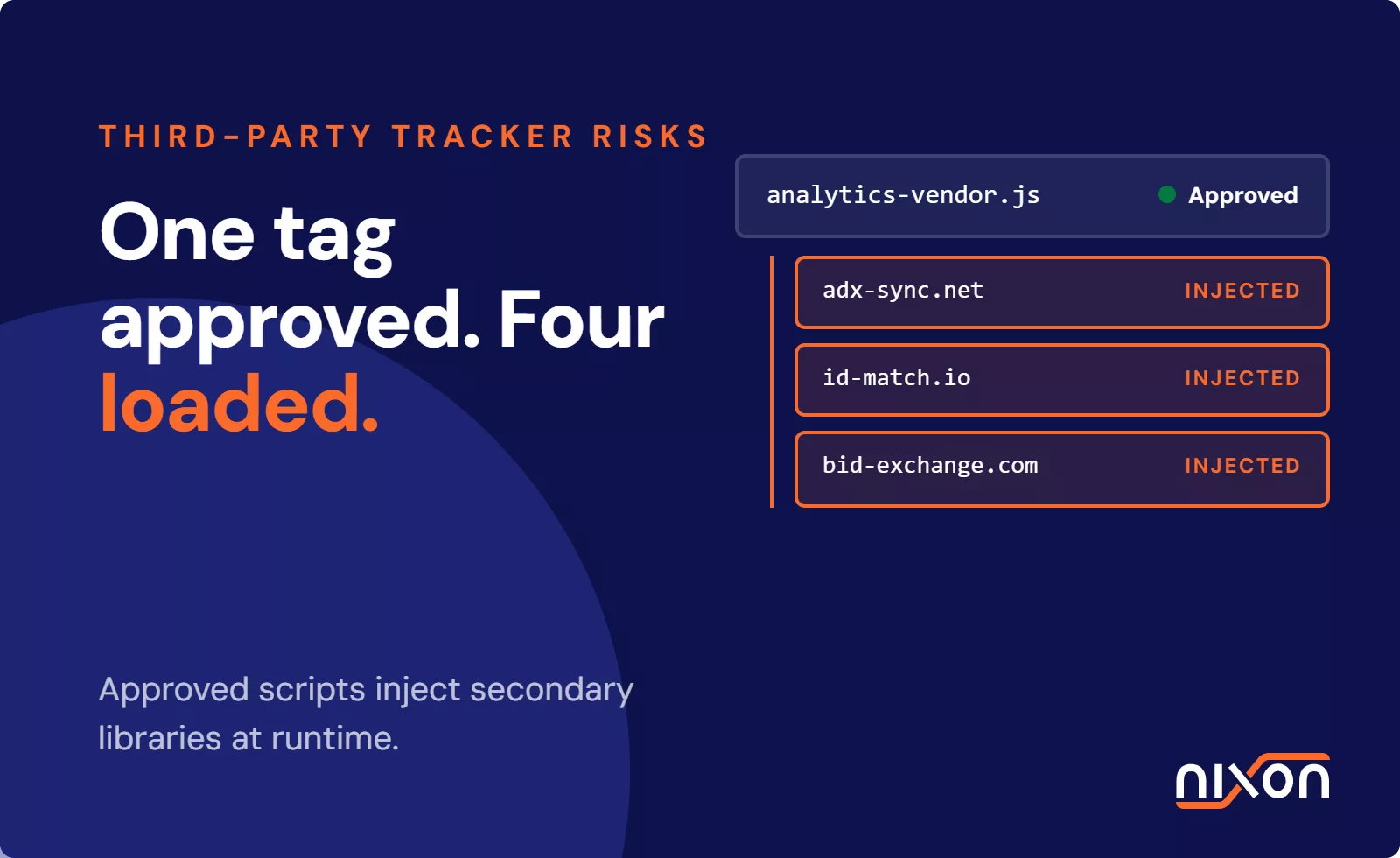
The EDPB Guidelines 05/2020 on consent are explicit: consent must be freely given and rejection must be as easy as acceptance. Yet audits by CNIL (France), the AP (Netherlands) and other national authorities reveal systematic failures. Reject buttons are smaller. They use contrasting colors that make them harder to spot. Pre-checked boxes force users to uncheck consent options instead of choosing them. Scripts load tracking code before any click happens.
Moreover, many websites record consent metrics that claim compliance without actually verifying what happened on the page. A banner logs “user accepted” even though the underlying consent mechanism failed. The data shows the banner was present, not that it worked.
These violations carry real consequences. CNIL issued a 90 million euro fine partly because consent mechanisms were broken. The AP found widespread non-compliance in their testing. Each national DPA has similar enforcement cases in progress.
The risk is not abstract. However, the problem is solvable. You can test your banner systematically and find these issues yourself.
How to Run a Cookie Banner Audit in 5 Steps
Step 1: Start With a Fresh Incognito Window
Open an incognito or private browser window and navigate to your website’s homepage. This gives you a clean slate with no prior cookies or localStorage data that might hide the banner or affect consent tracking. Take a screenshot of what appears.
The banner should be immediately visible. It should not require scrolling to see the reject option. If the accept button is prominent and the reject option requires digging through menu items or small text, document this. Dark patterns typically make themselves obvious at first glance.
Pay attention to button sizing and color contrast. The reject and accept buttons should appear equally easy to click. If one button is significantly larger or uses color to draw attention while the other blends into the background, this is a violation.
Step 2: Check Network Requests Before You Click Anything
Open your browser’s Developer Tools and go to the Network tab. With the incognito window still fresh and the banner visible, examine what requests are already firing. Look specifically for tracking scripts, analytics pixels, advertising network calls and other third-party requests.
Before a user has clicked accept or reject, your website should not fire requests to Google Analytics, Meta, advertising partners or other tracking vendors. If you see these requests in the Network tab before you interact with the banner, your website is collecting data without consent. This is a core violation.
Document the domain names of any trackers firing prematurely. For example, if you see requests to googleadservices.com, ads.google.com or other advertising networks before clicking anything, flag this immediately.
Step 3: Click Reject All and Watch What Happens
Now test rejection. Click the reject button and watch the Network tab. The critical moment happens immediately after rejection. In the following seconds, your website should not fire new requests to trackers or advertising networks.
Additionally, after rejection, functional scripts may fire (such as requests to your own domain for site analytics or performance monitoring). But third-party marketing and advertising scripts should stop. If you see a spike in tracking requests after clicking reject, the website is ignoring the user’s choice.
Also test the reject mechanism on other pages. Audit your pricing page, your blog and any major section of the website. Regulations apply to the entire website, not just the homepage. Regulators test multiple pages and violations on any page count.
Step 4: Verify How Consent is Stored and Persists
After rejecting consent, look in your browser’s storage. Right-click on the page, select Inspect, go to Application or Storage tab and examine cookies, localStorage and sessionStorage. Find the consent cookie or storage entry that records the user’s choice.
This is where many failures hide. Some websites store a timestamp or banner view indicator rather than the actual consent choice. Others record consent but store it in a way that disappears when the session ends. The EDPB guidelines require that consent be documented and traceable. If you reject tracking and refresh the page, the banner should remember your choice and the rejection should persist.
Moreover, the stored consent data should be granular. It should not just say “user saw banner.” It should specify which categories were accepted and which were rejected. If your banner only stores a binary “banner dismissed” value, this is insufficient for compliance.
Step 5: Compare the Privacy Policy to the Banner Promises
Finally, read your privacy policy and cross-reference what the banner claims. If your banner offers a choice between “Essential cookies only” and “All cookies,” the privacy policy should explain what each category includes. If the banner says cookies are used for “marketing optimization” but the privacy policy lists different purposes, there is a mismatch that regulators will notice.
Check whether third-party vendors are disclosed in the banner and again in the privacy policy. If your banner says you use Google Analytics but does not mention Meta Pixel, yet your privacy policy discloses Meta Pixel, this inconsistency signals a problem.
The banner and privacy policy must tell the same story. Regulators check both. If they diverge, you will be asked to revise them.
What to Do When You Find Problems
If your audit reveals issues, prioritize them by severity. Pre-checked boxes and scripts firing before consent are critical violations. Color contrast and button sizing problems are also important but may be addressed in a second phase.
For technical fixes, ensure that all tracking scripts are wrapped in consent checks. Google Consent Mode can help, but it requires proper configuration. Your developer should verify that the consent data stored by your banner actually prevents third-party code from executing.
If you audit a large website with many pages, this process becomes repetitive. Moreover, updates to your website or banner reset the baseline. Each time you publish new pages or change your cookie settings, you would need to re-run this audit manually across dozens or hundreds of pages.
This is where automated tools become practical. Nixon Pro audits your website and generates a detailed compliance report for your entire domain. It runs the same checks across all pages, identifies patterns of violation and delivers results in a format that your team and DPO can act on. Rather than spending hours on manual testing, you enter your URL and get a comprehensive picture of your banner’s actual behavior.
For companies managing multiple websites or updating privacy infrastructure regularly, automation saves weeks of work annually while reducing the risk of missing violations that manual audits can overlook.
Start with the five-step manual audit. If you find significant issues, fix them immediately. Then run the audit again to verify the fixes worked. As your website grows or your privacy setup becomes more complex, consider whether automated monitoring fits your compliance workflow.
Your cookie banner is a legal requirement, not decoration. Making sure it actually works is not optional. Test it today.
Related reading: Website privacy audit checklist | Pre-consent tracking: why most websites still get it wrong | CMP comparison 2026: which platform actually blocks tracking?
Frequently Asked Questions
Why do most cookie banners fail compliance checks even when they look correct?
Because there is a consistent gap between what a banner appears to do and what it actually does. Common failures include tracking scripts firing before any user interaction, reject buttons that are smaller or harder to find than the accept button, pre-checked boxes that force users to opt out rather than opt in, and consent storage that records “banner seen” rather than the actual choice made. Regulators test the technical behavior behind the banner, not just whether it is visible.
How do I check whether my website tracks users before they click anything?
Open your website in an incognito browser window, open Developer Tools and go to the Network tab before interacting with the banner at all. Watch which third-party requests fire while the banner is still on screen. Any requests to Google Analytics, Meta, advertising networks or other tracking vendors appearing at this stage mean your website is collecting data without consent – regardless of what the banner says.
Does clicking "Reject All" actually stop tracking on most websites?
Often no. After clicking reject, watch the Network tab for new requests to third-party tracking domains. Many websites show a spike in tracking requests immediately after rejection, meaning the consent choice is being ignored at the technical level. The test should also be repeated on pages beyond the homepage – regulations apply to the entire website and violations on any page count toward enforcement.
What should be stored in my browser after I reject cookie consent?
Your browser’s storage should contain a granular record of the consent choice – specifying which categories were accepted and which were rejected. A simple “banner dismissed” flag or a timestamp is not sufficient for GDPR compliance. The stored preference should also persist when you close and reopen the browser, not disappear at the end of the session. If rejecting consent and refreshing the page causes the banner to reappear, consent is not being properly recorded.
What should I do if my cookie banner audit reveals problems?
Prioritize by severity. Scripts firing before consent and pre-checked boxes are critical violations requiring immediate fixes – typically by ensuring all tracking scripts are wrapped in proper consent checks. Button sizing and color contrast issues are important but can be addressed in a second phase. After fixing critical issues, re-run the full audit to verify the fixes actually work. For large websites where manual testing across dozens of pages becomes impractical, automated tools like Nixon Pro can run the same checks across your entire domain and flag patterns that manual testing misses.