

Enforcement agencies are tightening the screws on tracking. The EU’s GDPR enforcement actions, state privacy laws across the US and the rise of CCPA compliance audits mean regulators are no longer content with cookie banners. They’re looking at actual data flows. Removing unnecessary trackers is no longer optional optimization. It’s now a baseline compliance requirement.
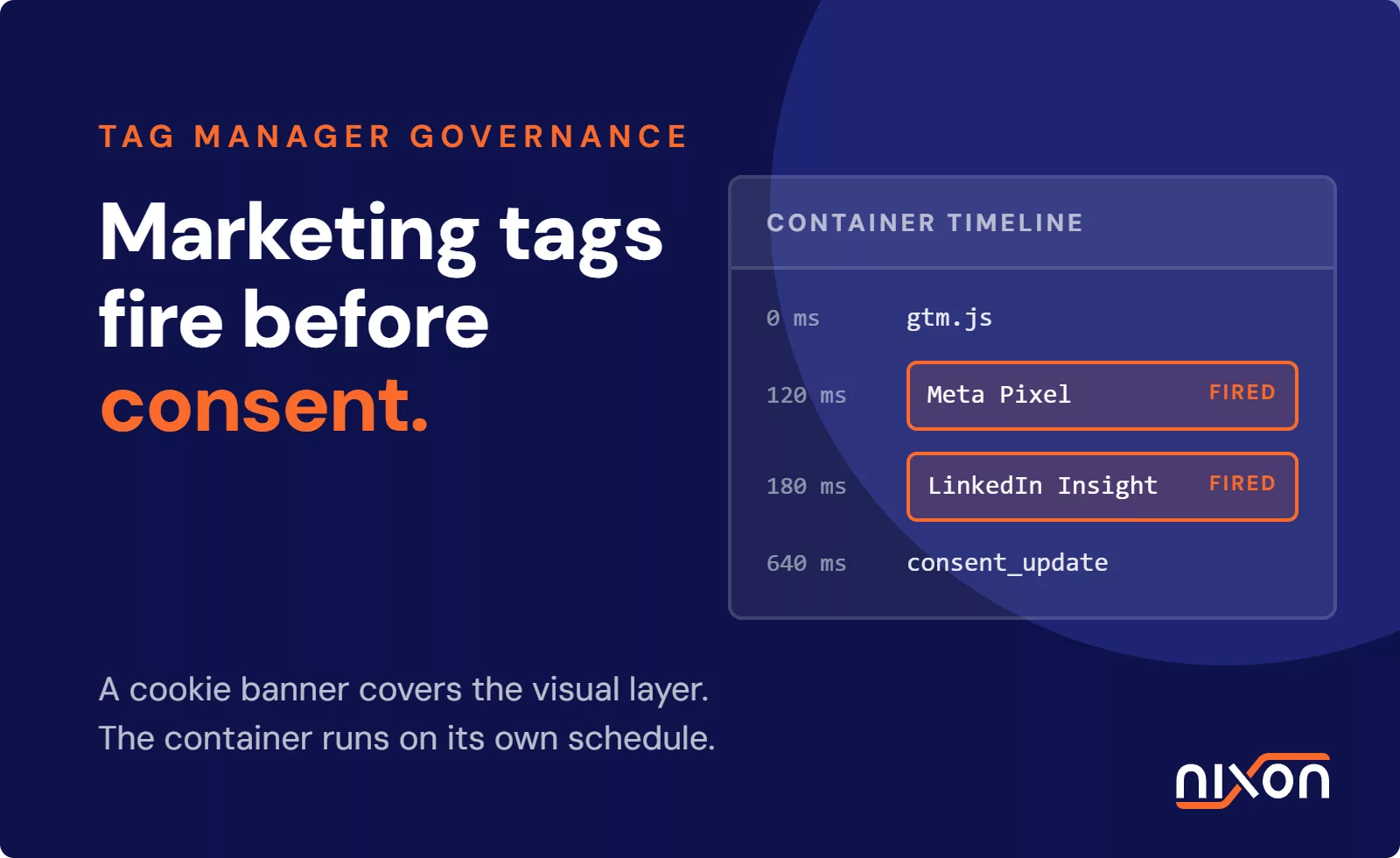
If your website collects visitor data through third-party services without explicit consent, you’re exposed. Google Fonts pings Google with every page load. Meta Pixel fires before consent is given. YouTube embeds set tracking cookies. These aren’t edge cases. They’re common mistakes on otherwise well-intentioned websites.
The good news: removing trackers is straightforward once you know what to remove. This guide walks you through the process.
Step 1: Find All Trackers First
You cannot remove trackers you don’t know exist. Before you start pulling code, you need a complete inventory.
You have two approaches here. The first is manual and technical: open your website in Chrome or Firefox, press F12 to open DevTools, switch to the Network tab and reload the page. Filter by domain to see all external requests. Look for googleapis.com (Google Fonts and Google APIs), youtube.com (video embeds), facebook.com and fbcdn.net (Meta Pixel), google-analytics.com (Google Analytics) and any other third-party domains you don’t recognize. This works, but it’s time-consuming and easy to miss subtle data flows.
The second approach is automated. Tools like Nixon Pro scan your entire website, categorize every tracker and show you exactly what data is leaving your domain. You get a structured report instead of raw network data, and the tool catches trackers across multiple pages at once. Nixon Pro identifies which third-party calls are active, flags which ones are loading before consent and cross-references them against your privacy policy to spot undocumented data flows. This takes minutes instead of hours and is far less prone to missing things.
Either way, document what you find. Create a spreadsheet with the tracker name, the domain it calls, what data it sends and whether you actually need it. You’ll use this list to decide what stays and what goes.
Step 2: Categorize What You Found
Not every tracker should be removed. Some trackers provide genuine business value. The key is being intentional about which ones stay.
Sort your tracker list into three buckets: essential, optional and legacy.
Essential trackers deliver real business value without reasonable alternatives. Server-side Google Analytics might fall here if you genuinely need behavior insights and cannot use a privacy-friendly alternative. A third-party payment processor that requires its tracking script might be necessary if you sell products. These stay, but they must be properly disclosed and blocked until consent is given.
Optional trackers provide value but have alternatives or could be replaced with first-party solutions. Google Fonts is optional because you can self-host fonts or use system fonts instead. A heat mapping tool like Hotjar is optional because you could use privacy-friendly alternatives or simply improve your UX based on user feedback. These should be removed unless there’s a strong business case to keep them after consent.
Legacy trackers have no clear purpose. A Facebook Pixel on your website when you’re not running Meta ads. A HubSpot script left over from a campaign that ended months ago. A Hotjar license no one remembers why you’re paying for. Remove these immediately.
As you categorize, be honest about business need. “This tool provides data” is not the same as “we actually use this data to make decisions.” If the answer is “we’ve always had this” or “I’m not sure why we have it,” it goes in the legacy bucket.
Step 3: Remove or Replace Common Trackers
Here are the trackers we see most often and how to remove them.
Google Fonts
If you’re using Google Fonts through a @import statement in your CSS or a link tag in the HTML head, remove it. Then either self-host the fonts (Google provides downloadable font files) or switch to system fonts. System fonts are faster to load anyway, because the browser already has them.
If you’re using a WordPress theme that includes Google Fonts, update your theme or use a plugin like Asset Cleanup to disable external font loading. The point is simple: replacing an external font request with locally hosted files or system fonts eliminates a significant data exposure.
YouTube Embeds
Standard YouTube embeds call youtube.com, which sets tracking cookies and connects to YouTube’s ad infrastructure. Use the privacy-respecting alternative instead: youtube-nocookie.com.
Change your embed URL from youtube.com to youtube-nocookie.com. The player works identically, but no tracking cookies are set. The visitor still gets ads, but YouTube doesn’t build a tracking profile across websites they visit.
If you want even stronger privacy protection, use lazy-load embeds. Instead of loading the YouTube player automatically, replace it with a thumbnail image and a play button. When the visitor clicks, then the iframe loads and YouTube tracking begins. This gives the visitor a choice point before tracker activation.
Google Analytics
Google Analytics is business-critical for many websites, so removing it entirely isn’t always realistic. But you can reduce the privacy exposure.
If you truly need analytics, consider switching to privacy-friendly alternatives. Plausible, Fathom and Matomo offer analytics without third-party tracking cookies and with European data residency options. They cost money, but they eliminate the Google data flow entirely.
If you must keep Google Analytics, use server-side tracking. Server-side GA proxies analytics through your own domain, so the client-side request doesn’t expose visitor data directly to Google. This requires more setup but reduces data exposure significantly. The visitor sees requests going to your domain, not to google-analytics.com.
Meta Pixel (Facebook Pixel)
Meta Pixel is a common compliance violation because it’s widely installed but rarely properly consented to. If you’re not running Meta ads, remove it entirely. You gain nothing by keeping it.
If you are running Meta ads and must keep the pixel, ensure it only loads after consent is given. Test this thoroughly. Open your website in an incognito window (which blocks cookies), watch the Network tab in DevTools and verify that no requests go to facebook.com or fbcdn.net until you consent. Many websites claim to block Meta Pixel on consent but actually load it anyway.
Session Recording Tools (Hotjar, Clarity)
Hotjar and Microsoft Clarity record scrolls, clicks, mouse movements and sometimes typed text. These create profound privacy risks because they capture sensitive data like form fills and email addresses. Yet many websites leave them running without proper disclosure or consent.
If you have Hotjar or Clarity installed, open your website’s DevTools and search the Network tab for “hotjar.com” or “clarity.ms”. If you find active requests, ask yourself: is this tool worth the privacy risk? Most teams realize they’re paying for a service they never use. Remove it.
If you need session insights, use privacy-friendly alternatives like Smartlook or heatmap tools that aggregate data without recording individual sessions. Better yet, improve your UX through direct user feedback.
Google Tag Manager Audit
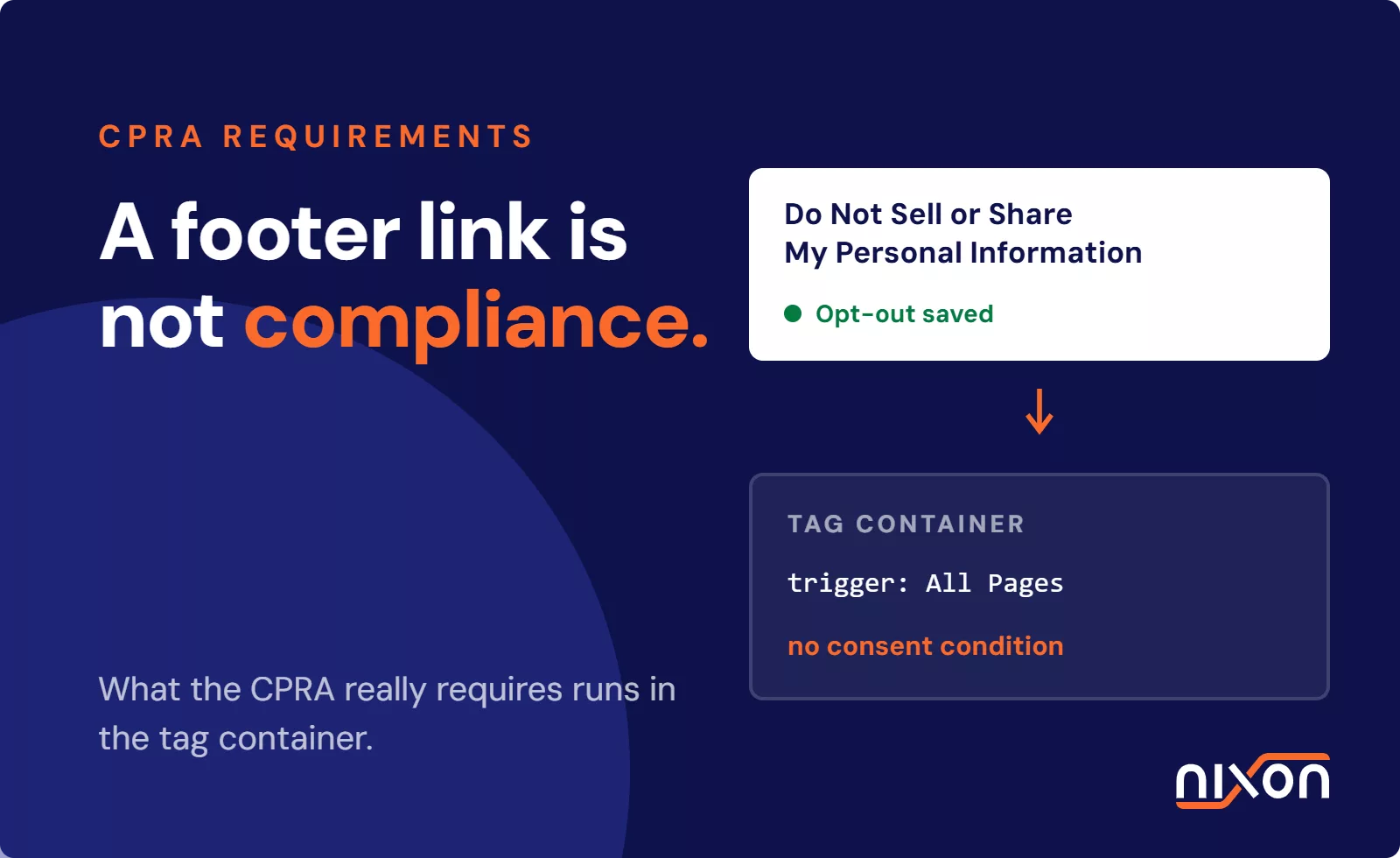
Google Tag Manager itself doesn’t track anything. It’s a container. But what you put inside the container absolutely does. Many websites accumulate GTM tags over time without proper oversight. Open your GTM account and review every single tag inside your container. Does it exist for a current campaign? Is it properly blocking on consent? Is it documented?
Disable or delete tags from campaigns that have ended. Audit remaining tags to ensure they’re properly blocked. Many GTM implementations fire analytics, pixels and tracking scripts before consent is given, defeating the purpose of having a CMP at all.
Google Consent Mode v2
If you serve visitors in the EEA, UK or Switzerland and run Google Ads or Analytics through GTM, removing trackers isn’t the end of the story — Google now requires Consent Mode v2 signals to keep conversion tracking and remarketing working at all. A June 2026 update consolidated ad data controls so that the ad_storage parameter is now the sole authority for advertising data on linked Google Ads accounts, replacing the older Google Signals toggle.
Before you consider your tracker cleanup finished, check these four things in GTM:
ad_storage,analytics_storage,ad_user_dataandad_personalizationare all present and default to denied for EEA/UK/Swiss visitors.- The consent update call only fires after the visitor interacts with your banner, on every page type, not just the homepage.
- Your GA4 property is still correctly linked to the Google Ads account you rely on for conversion data.
- Tag Diagnostics in GTM (allow 48-72 hours for data to appear) shows no consent-related warnings.
Get this wrong and you don’t just risk a privacy complaint — you lose reliable conversion and remarketing data even when visitors do consent.
Step 4: Verify the Changes Worked
Removing code isn’t sufficient if the code gets re-added during deployment or if errors prevent the removal from taking effect.
Reload your website in an incognito window to clear cookies and prevent browser caching from masking changes. Open DevTools to the Network tab. Look through the requests and verify that the trackers you removed are no longer calling home. Check the cookies tab and confirm that third-party cookies from removed services are gone.
If you removed Google Fonts, you should see no requests to googleapis.com. If you removed Meta Pixel, you should see no requests to facebook.com. If you changed YouTube embeds to youtube-nocookie.com, requests should go there instead of youtube.com.
Test your consent banner. Reload the page without giving consent and verify that third-party tracking scripts don’t fire at all. Then give consent and verify that only the approved trackers load. This is the single most important test because many consent implementations fail silently. They load trackers first and ask permission later.
Step 5: Update Your Privacy Policy
Your privacy policy must accurately describe what you collect and who you share data with. If you removed trackers, your privacy policy is now inaccurate and creates legal liability.
Review the data you still collect. Update your privacy policy to describe each remaining tracker by name, explain why you use it and describe what personal data it processes. Be specific. Instead of “we use Google Analytics to understand user behavior,” write “we use Google Analytics 4 to measure page views and user sessions. Google Analytics sets cookies named ga, _gid and _ga[ID] to track behavior across your visit.” This level of specificity is what regulators expect.
If you changed from one tracker to another (like switching from Google Analytics to Plausible), update those sections. If you removed trackers, remove them from your policy entirely.
After you update, read your privacy policy one more time and verify that every tracker named in your policy is actually firing on your website and every tracker firing on your website is named in your policy. This alignment is what compliance actually looks like.
Removing Trackers Isn’t One-Time Work
Tracker removal is the beginning, not the end. Developers add new integrations. Marketing tools require new scripts. Contractors implement tools without checking for privacy overlap. Tracker drift happens.
Run a tracker audit every three months at minimum. If your team is large or your website changes frequently, check monthly. Use browser DevTools or a privacy scanning tool like Nixon Pro to verify your inventory hasn’t changed. Compliance isn’t a checklist. It’s an ongoing practice.
The regulatory pressure on tracking is only increasing. The CPPA is ramping up enforcement against CCPA violations. The UK ICO is fining websites for undisclosed tracking. Privacy regulators globally are moving from consent paperwork to actual technical enforcement. Removing unnecessary trackers isn’t defensive anymore. It’s baseline competence.
What trackers does your website have? Start with a free scan using browser DevTools. Or save hours by using Nixon Pro, which scans your entire website, identifies every tracker, shows you which ones are blocking on consent and flags undocumented data flows. See exactly what’s tracking your visitors.
Related reading: How to find every tracker on your website | Technical guide to third-party tracker detection | Cookie banner audit: does yours actually work?
Frequently Asked Questions
How do I find all the trackers running on my website?
Two approaches. Manually: open Chrome or Firefox DevTools, go to the Network tab and reload your page to see every external request. Look for googleapis.com, facebook.com, google-analytics.com and any other third-party domains. Automatically: a tool like Nixon Pro scans your entire site across multiple pages, categorizes every tracker, flags which ones load before consent and cross-references them against your privacy policy. The manual approach works for a single page but is easy to miss subtle data flows across a larger site.
Do I need to remove Google Fonts to be GDPR compliant?
Not necessarily – but you need to understand what it does. Every time a page loads Google Fonts from googleapis.com, Google receives the visitor’s IP address and the page URL. The fix is straightforward: self-host the font files instead, which Google provides as free downloads, or switch to system fonts entirely. System fonts are faster to load anyway. If you use WordPress, a plugin like Asset Cleanup can disable external font loading without touching your theme code.
What should I do with trackers I find but am not sure why they exist?
Sort your tracker inventory into three buckets: essential (genuine business value, no reasonable alternative), optional (value exists but alternatives are available) and legacy (no clear purpose – old campaign pixels, unused tools, forgotten integrations). Legacy trackers should be removed immediately. The test for optional trackers is not “does this provide data” but “do we actually use this data to make decisions.” If the honest answer is “we’ve always had it” or “I’m not sure,” it goes in the legacy bucket.
After removing trackers, how do I verify the changes actually worked?
Open your website in an incognito window to clear cookies and prevent browser caching. In the Network tab, check that removed services no longer make requests – no googleapis.com if you removed Google Fonts, no facebook.com if you removed Meta Pixel. Then test your consent banner specifically: reload without giving consent and verify no third-party tracking scripts fire at all, then give consent and verify only approved trackers load. Many consent implementations fail silently by loading trackers first and asking permission afterward.
How often should I audit my website for trackers?
At minimum every three months. If your team is large or your website changes frequently, check monthly. Tracker drift is common – developers add new integrations, marketing tools require new scripts, contractors implement tools without checking for privacy overlap. Compliance is not a one-time checklist. Each audit should verify that every tracker named in your privacy policy is actually running, and every tracker running is named in your privacy policy. That alignment is what compliance actually looks like.