

Your website probably has more website trackers than you realize. Most websites do. Finding them all, understanding what they do and deciding whether they should stay, is the first step toward real privacy compliance.
The problem isn’t necessarily that trackers exist, but the problem is when you don’t know they exist. A marketer adds Facebook Pixel, a web-developer includes a heat-mapping tool or someone embeds YouTube videos. Each addition brings data collection you may not have documented, much less disclosed to users. Before you know it, you’re out of compliance without realizing it.
Therefore we made this article that walks you through how to find every tracker on your website, interpret what you find and act on that information.
First things first: What is a tracker?
A tracker is a piece of technology on a website that collects information about how visitors use the site. This can include which pages someone visits, what they click on, which device or browser they use and sometimes where they came from before landing on the website. In simple terms, a tracker helps a website or another company understand visitor behaviour.
Third-party trackers are trackers provided by external companies, such as analytics platforms, advertising networks, social media platforms, video players, chat tools or marketing software. These trackers can receive personal data, such as an IP address, browser information or device information. On their own, these details may seem harmless, but together they can create a unique profile that helps identify or recognise a visitor across websites, also known as a digital fingerprint.
That is why it is important for website owners to know which trackers are active, what data they collect and whether they are loaded only after valid consent by the visitor when required.
How do I check my website on trackers?
Once you understand that trackers can collect information from your website visitors, the next logical question is: how do you find out which trackers are active on your own website? The simplest way to do this is by using a tracker checker, a tool that scans your website and shows which tracking technologies are present.
A tracker checker scans your website and reports back what it collects from your visitors. It identifies trackers by examining network requests, cookies and embedded code. Different tools detect different things, but the best ones catch the full picture.
A tracker checker typically looks for several categories of tracking mechanisms. First, there are cookies (both first-party and third-party). First-party cookies are set by your domain and third-party cookies are set by external services, each carrying different privacy implications. Google Analytics sets a first-party cookie called _ga, while Facebook Pixel sets third-party cookies when it fires.
Second, tracking pixels and beacons work as single-pixel images or JavaScript calls that send data back to a remote server. You load them on your page and they phone home with visitor information. Meta (formerly Facebook) uses pixels extensively, while Hotjar uses beacons to track scroll behavior and mouse movement.
Third, JavaScript tags and containers like Google Tag Manager let you add one GTM container to your site and then manage dozens of tags from a dashboard. Each tag can fire independently, calling analytics, ad platforms or CRMs without you touching your code again.
Fourth, some trackers don’t work via the browser at all. Server-side connections allow services to connect from your backend directly to third-party services. These are harder to spot with browser-based tracker checkers, but important to know about.
Finally, font and CDN requests can leak data in surprising ways. Google Fonts doesn’t directly track you, but loading from googleapis.com means Google sees the request, including the visitor’s IP address and the page URL. That’s a data exposure regardless of intent. Similarly, embeds that pull external resources like YouTube videos, Google Maps and Vimeo request data from their parent domains and each request is an opportunity for cross-site tracking.
The most common trackers found on websites
If you run a tracker checker on a hundred websites, you’ll see the same names repeat. Google, Meta and a handful of specialized tools show up everywhere. Here’s what you’re likely to find:
Google Analytics and GA4 appear on most websites. GA4 sets cookies on your domain (_ga, _gid) and sends events to Google’s servers. It’s become expected, but it still requires proper disclosure and consent depending on your jurisdiction.
Google Fonts. Every page load creates a request to googleapis.com with the user’s IP address, and Google can log which pages are being visited. While not tracking in the traditional sense, it represents a meaningful data exposure.
Meta Pixel (Facebook Pixel), usually for ad retargeting. It sets multiple cookies and tracks click events, form submissions and purchases. This tracker generates the most privacy complaints because Meta’s data practices are notably aggressive.
Google Tag Manager functions as a container for other tracking tools. The container itself doesn’t track anything, but whatever you put inside it does. GTM is one of the most widely deployed tag containers on the web, and it often carries multiple undocumented tags firing inside it.
YouTube embeds create cookies from youtube.com and requests to YouTube’s ad servers. Anyone embedding videos gets this behavior by default. Google Maps embeds follow a similar pattern, creating API calls that log location-based behavior.
Hotjar is a heat mapping and session recording tool that captures where people click, scroll and type. It’s popular with UX teams but rarely disclosed in privacy policies. Clarity (Microsoft) serves a similar function as Microsoft’s equivalent to Hotjar, recording mouse movements, scrolls and clicks.
HubSpot tracking code fires across your site if you use HubSpot forms or CRM tools. Mailchimp and ConvertKit scripts add tracking to their signup forms and can track activity beyond the form itself. Email platforms like these embed monitoring capabilities that extend across your entire website.
The takeaway is straightforward: most websites have 10-20 active trackers and larger sites have 50 or more. Many of those go undocumented, which is why using a tracker checker like Nixon Pro is advised.
How to run a tracker checker on your website
You have three main options, each with different trade-offs.
Method 1: Browser DevTools (Manual, Free)
Open your website in Chrome or Firefox, then press F12 to open DevTools. Switch to the Network tab and reload the page to see every request your website makes. Filter by XHR to see JavaScript requests and by img to see pixel calls. Look through the cookies in the Application or Storage tab to understand what’s being stored.
This method works, but it requires some technical knowledge to interpret what you’re looking at. A request to google-analytics.com is obviously tracking. A request to fonts.googleapis.com is less obvious and a request to your CDN might be legitimate or might represent data leakage. The approach is time-consuming for large websites and won’t catch server-side trackers or some of the more subtle ones.
The advantage of DevTools is that it’s free and transparent, giving you direct access to the data without relying on third-party tools. The downside is the manual effort required, the ease of missing things and the technical knowledge needed to interpret findings correctly.
Method 2: Online Tracker Checker Tools
Method 3: Full Privacy Scan Tools
This approach works best if you need a clear and complete overview of what is happening on your website. A tracker checker like Nixon Pro automatically scans your website in the browser and turns the results into a structured privacy audit report. It shows which trackers and third-party technologies are active, where they appear and whether they may create privacy or consent risks. This saves manual work, makes the findings easier to understand and helps teams move from detection to action.
The advantage of Nixon Pro is that it gives you a practical website-wide overview without having to inspect every page manually in DevTools. It is especially useful for organisations that want to understand their tracker exposure, document findings and prioritise what needs to be fixed. The trade-off is that it isn’t free like DevTools, but the result is much more complete and useful for privacy, compliance and website teams.
What to do with your tracker checker results
Running the scan is step one. Interpreting the results is step two.
Start by categorizing your findings. Look at each tracker and decide whether it’s necessary, intentional, documented and consented. Google Analytics might be necessary for understanding user behavior. Facebook Pixel might be business-critical for ad retargeting. Google Fonts might be a design choice you’re willing to accept. Hotjar recording sessions might be something you added without thinking through the privacy implications.
Some trackers are obvious legacy code that should be removed immediately. A pixel from a marketing campaign that ended two years ago. A script left behind by a contractor who’s no longer on your team. These create risk without providing value.
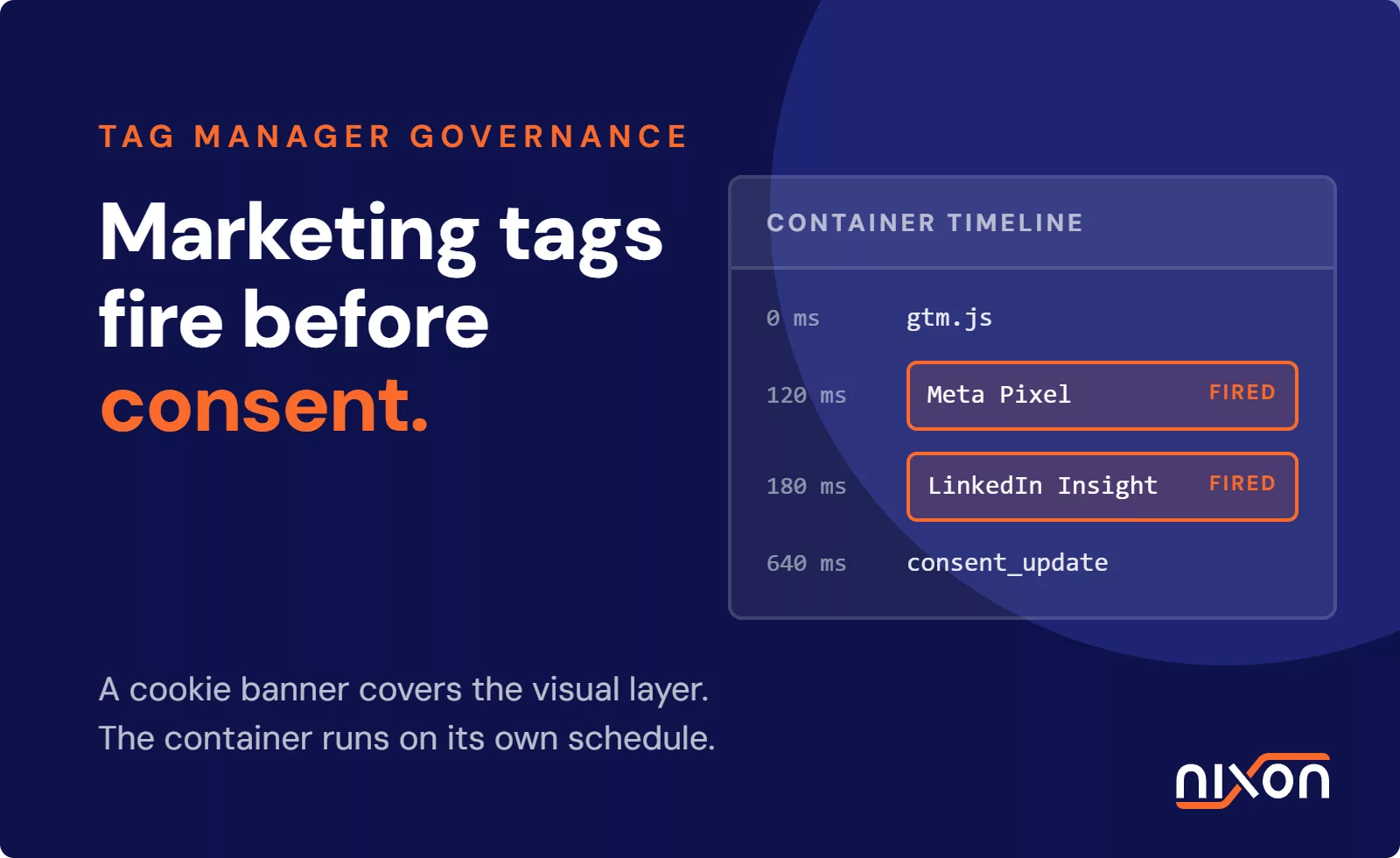
If a tracker isn’t essential, don’t load it until the user consents. This is where your Consent Management Platform (CMP) comes in. Configure your CMP to actually block third-party scripts until consent is given. A CMP that loads tags first and asks permission later isn’t blocking anything, it’s compliance theater. Real protection means the script doesn’t fire until the visitor actively consents.
If a tracker doesn’t serve a documented business purpose, remove it. The risk of data exposure often outweighs the benefit. This sounds simple but surprises many teams who believe every tool provides value when often they don’t.
Update your privacy policy to accurately describe each tracker that remains. Name it, explain why you use it and describe what data it collects. Be specific rather than vague. Then run your tracker checker again in a few weeks to verify the changes stuck. Developers often re-add scripts they think are essential and marketing tools get re-added during campaign launches. You can drift back into over-tracking without noticing unless you test regularly.
How often should you check for trackers?
Tracker drift is a real problem. Your website accumulates tracking code over time as a developer adds Mixpanel for product analytics, marketing adds a retargeting pixel and a contractor integrates their tool. Each addition happens independently, often without full communication across teams.
If your website is stable and controlled, run a tracker checker quarterly. If your website changes frequently, check monthly. If you have multiple teams adding integrations, check monthly at minimum.
The EDPB expects ongoing auditing as part of Data Protection Impact Assessments. Regular website tracker checks fulfill that requirement and demonstrate your commitment to privacy compliance.
Putting it together
Finding trackers on your website is the first step toward understanding your privacy risk. You can’t comply with data protection laws if you don’t know what data you’re collecting.
You can do this manually by opening DevTools and inspecting network requests yourself, which works fine for small websites but gets painful fast. Or you can use a privacy scanning tool like Nixon Pro that checks your entire website automatically, identifies every tracker, categorizes them and shows you which ones are properly consented. The automated approach scales better, catches more issues and takes minutes instead of hours.
Once you have your list, categorize ruthlessly. Remove what you don’t need. Block what you keep until users consent. Document everything in your privacy policy. Then repeat the process regularly because tracker drift isn’t a one-time problem, it’s an ongoing reality of running a website.
The goal isn’t to have zero trackers. The goal is to have intentional trackers you’ve documented, consented to and can defend. That’s privacy done right.
Want to audit your website trackers faster? Nixon Pro checks your entire website in minutes, identifying every tracker, how they’re categorized and whether they’re properly blocking on user consent. See exactly what’s tracking your visitors and what privacy risks you’re exposed to.
Related reading: How to remove third-party trackers from your website | Cookie banner audit: does your banner actually block tracking? | Full website privacy audit checklist
Frequently Asked Questions
What is a tracker checker?
Are all website trackers bad?
What is the difference between a cookie and a tracker?
Can I check my website trackers manually?
Why is a one-page tracker scan not always enough?
Many trackers are not loaded on the homepage. They may appear on landing pages, forms, checkout pages, embedded videos, blog pages or campaign pages. Some trackers also load only after a visitor clicks a button or makes a cookie choice. That is why a full website scan often gives a more reliable picture than checking only one URL.
How often should I check my website for trackers?
For most websites, a quarterly check is a good starting point. If your website changes often, if marketing teams regularly add new campaigns or if multiple people can add scripts through tools like Google Tag Manager, a monthly check may be more appropriate. Trackers can appear over time, so checking once is usually not enough.