

A compliant OneTrust cookie consent setup requires more than just adding a script to your website. Many organizations invest in the platform believing it automatically blocks all trackers, but the technical reality is more complex. Your Google Tag Manager or hardcoded scripts might continue to fire before a visitor clicks ‘Accept’. If this happens, your configuration fails to meet GDPR and ePrivacy requirements. This checklist covers the most critical technical configurations we always verify to ensure your OneTrust setup actually works as intended.
Why buying OneTrust is only half the battle
Deploying the OneTrust script on your website only renders the user interface. This includes the cookie banner, preference center and policy link. It is a common misconception that the banner script automatically intercepts and blocks all other tracking activity on the page. The technical gap lies in communication. Your tags, pixels and analytics scripts must be configured to listen for and respect the consent choices a user makes.
Without this integration, the banner is merely compliance theatre. It records a user’s choice, but the underlying tracking technology does not act on it. Google Analytics might still record a page view. The Meta Pixel might still fire, sending data to third parties without a valid legal basis. True compliance is achieved when the consent state managed by OneTrust directly controls every non-essential script on your website. Comparing CMPs is useful, but successful implementation is what matters most. You can read a detailed OneTrust vs Usercentrics comparison to see how platforms differ, but the integration challenge remains universal.
Check 1: Gaps in OneTrust cookie consent logic
The most common and severe compliance failure we see in audits is tracking before consent. European data protection authorities are explicit on this point. No non-essential cookies or trackers can be loaded prior to a user giving their active, informed opt-in. Both the EDPB guidelines on consent and national interpretations like the CNIL guidelines on cookies and tracking devices reinforce this principle. Verifying this is the first and most important check.
Testing with a clean browser session
To accurately test your website’s initial state, you must simulate a first-time visitor. Existing cookies or consent choices stored in your browser will prevent you from seeing what a new user experiences. The best method is to open a new “Incognito” or “Private” browser window. This ensures there are no pre-existing cookies from your domain. Alternatively, you can use your browser’s developer tools to clear all cache and website data before loading the page.
Identifying early loading trackers
With a clean session established, open your browser’s developer tools and navigate to the “Network” tab. Reload your website’s homepage. Before you click anything on the OneTrust banner, inspect the list of network requests. Filter the list by typing the names of common tracking domains like “google-analytics”, “facebook”, “doubleclick”, “linkedin” or “hotjar”. If you see requests to these domains, it means trackers are loading before consent. This is a clear compliance violation that needs immediate remediation.
Check 2: Fixing GTM for OneTrust cookie consent
Most large websites use Google Tag Manager (GTM) to manage their marketing and analytics tags. A common failure point is how GTM triggers are configured to interact with OneTrust. Simply having the OneTrust script and the GTM script on the same page does not create an integration. You must connect them.
Data layer events vs page views
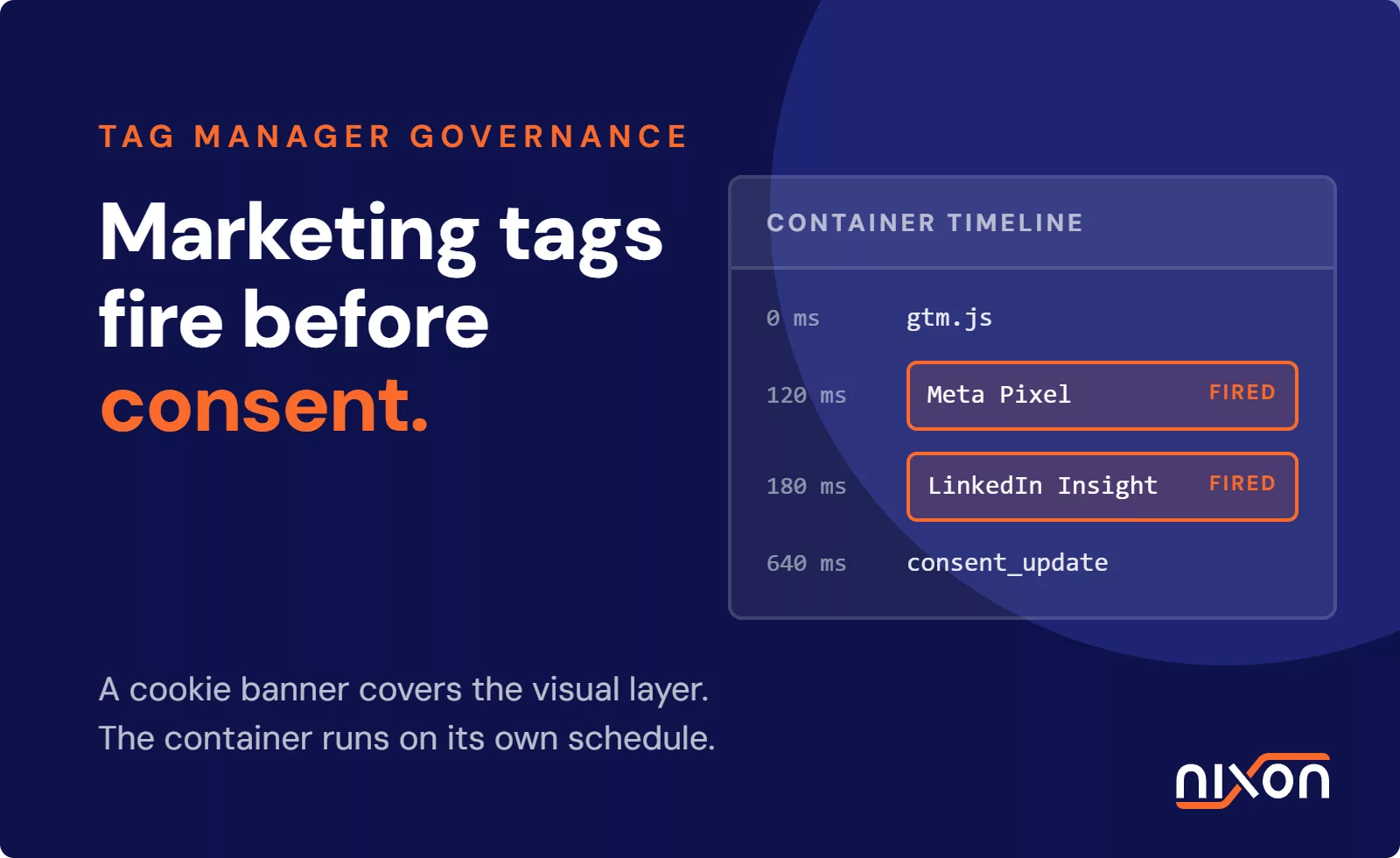
By default, many tags in GTM fire on a “Page View” trigger. This means the tag executes as soon as GTM loads, which is often before the user interacts with the cookie banner. A correct OneTrust integration pushes a custom event to the GTM data layer when consent is given. This event, often named `OnetrustActiveGroups`, contains the cookie categories the user accepted. Your GTM triggers must be changed from “Page View” to “Custom Event” and listen for this specific OneTrust event. You should also add a condition to check that the relevant consent category is included.
Handling trigger exceptions
Some tags must fire before consent for the banner to work correctly, such as the OneTrust script itself. In GTM, you can use trigger exceptions to manage this. For instance, you might create a blocking trigger that fires on “All Pages” but add an exception so it does not block your OneTrust tag. This ensures the mechanism for collecting consent can run, while all non-essential tags are held back. Carefully auditing your triggers and exceptions is key to preventing data leaks.
Check 3: Categorizing cookies for your OneTrust cookie consent
Websites are not static. Marketing teams add new tools, developers integrate new services, and third-party scripts are updated. A new HubSpot form, a LinkedIn Insight Tag or a Hotjar script can introduce new cookies. If these are not discovered and categorized within your OneTrust Tenant, they may load without consent. This violates transparency requirements.
Establish a process for regular scanning of your website to discover new cookies. OneTrust’s scanner can help identify unknown cookies, but our experience shows that automated tools require expert review to correctly categorize business-critical scripts. Once found, each cookie must be assigned to the correct category in your OneTrust Cookiepedia. Without this active governance, your cookie list becomes outdated. Your consent banner then provides inaccurate information, which undermines the validity of the consent collected.
Ultimately, the goal is to validate if your OneTrust consent implementation works in practice, not just on paper. A compliant configuration requires continuous alignment between your tag management system, backend scripts and OneTrust categorization. If you lack the in-house technical resources to manage this complex environment, professional assistance can mitigate your compliance risk. If you need help with your setup, you can get OneTrust implementation help from Nixon.
Frequently Asked Questions (FAQ)
Does OneTrust automatically block cookies on my website?
No, OneTrust does not automatically block cookies. It provides the user interface for collecting consent and an API for communicating that consent. Your website's scripts, especially those in Google Tag Manager, must be manually configured to listen for OneTrust's signals and prevent tags from firing until the appropriate consent is given. Without this technical integration, trackers will still load.
How do I test if my OneTrust cookie consent is working?
Open your website in a new incognito or private browser window to simulate a first-time visitor. Before interacting with the cookie banner, open your browser's developer tools and check the 'Network' tab. If you see requests to third-party domains like Google Analytics or Facebook, your setup is not working correctly and is loading trackers before consent is given.
What is the difference between OneTrust and Usercentrics?
OneTrust and Usercentrics are both leading consent management platforms (CMPs). OneTrust is often favored by large enterprises for its extensive suite of privacy, GRC and security tools beyond just cookie consent. Usercentrics is known for its strong focus on cookie consent management with a flexible and developer-friendly implementation. The core technical challenge of integrating the CMP with your tag manager remains similar for both platforms.
Why are some trackers still loading before consent is given in OneTrust?
This usually happens because of misconfiguration in your tag management system, like Google Tag Manager. Tags are likely firing on a default 'Page View' trigger instead of waiting for a custom event from OneTrust that confirms consent. Each non-essential tag's trigger must be updated to depend on a user's explicit opt-in signal from the OneTrust platform.
What does the OneTrust cookie categorisation process do?
Categorisation involves scanning your website to identify all cookies and tracking scripts, then assigning each one to a specific purpose group (e.g., Strictly Necessary, Performance, Targeting). This process populates the information shown to users in the cookie banner's preference center, ensuring transparency. It is a crucial step for GDPR compliance, as consent is only valid if it is informed.